
 German / Deutsch
 English
 French / Français
 Spanish / Español
 Dutch / Nederlands
 Italian / Italiano
 Polish / Polski
 Norwegian / Norsk
 Danish / Dansk
 Finnish / Suomi
 Swedish / Svenska
 Czech / Česky
 Greek / Ελληνικά
 Slovak / Slovenčina
 Slovenian / Slovenščina
 Estonian / Eesti
 Latvian / Latviešu
 Lithuanian / Lietuvių
 Hungarian / Magyar
 Romanian / Română
 Bulgarian / Български
 Portuguese / Português
USB-C adapter
Continue to use existing ports on USB-C devices: At MAG, specialist retailers, system integrators and service providers can find DINIC USB-C adaptors for HDMI, DisplayPort, VGA, USB-A, RJ45 LAN and 3.5 mm jack. In addition, USB-C hubs with multiple USB-A ports and models with a PD charging input are available.
USB-C to HDMI or USB-C to DisplayPort: The linked models support up to 4K at 60 Hz, depending on the source, cable and display.
You can connect existing USB-A peripherals to a compatible USB-C device using a USB-C-to-USB-A OTG adapter.
USB-C Gigabit LAN adapters provide an RJ45 connection. For jack audio, there are digital USB-C audio adapters with a chipset.
USB-C refers to the connector type: please also check the device’s features. Video adapters require USB-C video output; OTG, networking and USB audio require corresponding support from the end device.
USB-C adaptors for monitors, networking, USB accessories and audio
Monitors and projectors
USB stick, mouse and keyboard
Network and headphones

Which USB-C adapter is suitable for your port?
Start by considering your existing device and the connection you need: do you want to connect a monitor, use USB-A accessories, add a LAN port or connect headphones? Then check the plug and socket types, device compatibility and the required resolution or data rate.
| Application | Suitable DINIC adapter | What matters |
|---|---|---|
| HDMI monitor, TV or projector | USB-C to HDMI socket, up to 4K at 60 Hz, HDR. | USB-C video output on the source device; the resolution and HDR must be supported by the entire connection. |
| Monitor with DisplayPort | USB-C to DisplayPort socket, up to 4K at 60 Hz. | USB-C with DisplayPort Alt Mode and a suitable DisplayPort cable. |
| Existing VGA projector | USB-C to VGA socket, up to 1920 × 1080 at 60 Hz. | USB-C video output required. VGA transmits the image; audio must be connected separately. |
| USB-A peripherals on a USB-C device | USB-C to USB-A 3.0, OTG, 0.20 m. | Device must support host/OTG mode; data transfer up to 5 Gbit/s, depending on the device. |
| Wired network | USB-C to RJ45 Gigabit LAN, 0.20 m. | 10/100/1000 Mbit/s; suitable USB data port and operating system support required. |
| Multiple USB-A devices | USB-C hub with 4 × USB-A and PD. | Four USB-A data ports; additional USB-C socket as a PD charging input up to 100 W. |
| Headphones or headset with jack | USB-C to 3.5 mm audio with DAC/ADC. | Support for digital USB audio and compatible jack pinout for headphones or headsets. |
| Continue to use your Micro-USB cable | USB-C plug to Micro-USB-B socket. | USB 2.0 data transfer and charging, depending on the device and cable. |
USB-C to HDMI or DisplayPort: check video output
A USB-C port with charging or USB data functionality alone is not sufficient for the linked video adaptors. Check that your laptop, tablet or smartphone supports video output, particularly DisplayPort Alt Mode. The adaptors connect a USB-C source to the relevant monitor input.
Our guide ‘Which monitor cable do I need?’ explains how to choose the right one.
USB-C to USB-A or USB-A to USB-C?
To connect a USB stick with a USB-A plug to a USB-C laptop, you’ll need a USB-C plug to USB-A socket adapter. If, on the other hand, you want to connect a USB-C cable to an existing USB-A port, choose an adapter with a USB-A plug and a USB-C socket.
A different connector type will not compensate for a missing video output or USB-C PD functionality.
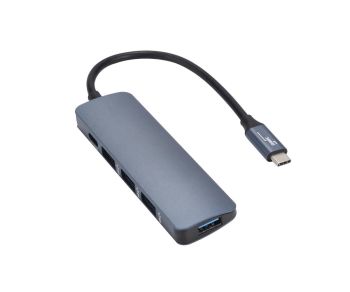
USB-C hub: Use USB-A devices whilst charging
The DINIC 4-port USB-C hub connects multiple USB-A devices to a suitable host. Its additional USB-C socket is used for charging via Power Delivery up to 100 W. The actual usable charging power depends on the power supply, cable and end device.
To use the charging function, you will need a suitable USB-C PD power supply and charging cable. The hub does not have an HDMI or DisplayPort output.
Suitable cables and packaging for your project
To connect the video adapter to the display, you’ll find HDMI and DisplayPort cables at MAG. Further guidance on charging, data and video is available in the guide ‘Choosing the right USB-C cable’.
Depending on the item, bulk, polybag or DINIC box versions are available. Choose the packaging type to suit your service setup, device distribution or retail sales.
Frequently asked questions about USB-C adapters
Why isn’t the USB-C to HDMI adapter displaying an image?
First, check whether the USB-C port you are using supports video output. Then check the monitor’s input, the HDMI cable and the resolution setting. An adapter cannot compensate for a lack of video support on the source device.
Do OTG adapters work with every smartphone?
The smartphone must support USB Host or OTG and the connected accessory. The operating system, power requirements and, where applicable, the file system of any storage medium also play a role.
What is the purpose of the chipset in the USB-C to jack adapter?
The integrated DAC converts digital USB audio signals into analogue headphone signals. The linked model also features an ADC for the microphone input. Device compatibility and headset pinout must be suitable for the intended use.
Does a USB-C to HDMI adapter also work in the opposite direction, from HDMI to USB-C?
The video adaptors linked here are designed for USB-C as the source and HDMI, DisplayPort or VGA as the display connection. For an HDMI output on a USB-C monitor, you’ll need a solution specifically designed for this purpose.
USB-C adapters for retail, IT services and equipment provision
Do you need adapters for workstations, meeting rooms or service cases? Please let us know the device models, existing ports, required functions, quantities and packaging. MAG will assist you in selecting suitable DINIC adapters.
Send a B2B enquiry to MAGYou can find further connector and connection terms in the Cable Glossary for B2B.