 German / Deutsch
  English
  French / Français
  Spanish / Español
  Dutch / Nederlands
  Italian / Italiano
  Polish / Polski
  Norwegian / Norsk
  Danish / Dansk
  Finnish / Suomi
  Swedish / Svenska
  Czech / Česky
  Greek / Ελληνικά
  Slovak / Slovenčina
  Slovenian / Slovenščina
  Estonian / Eesti
  Latvian / Latviešu
  Lithuanian / Lietuvių
  Hungarian / Magyar
  Romanian / Română
  Bulgarian / Български
  Portuguese / Português
 -
You do not have any products in your shopping cart yet.
DVI cables and HDMI-to-DVI cables
DINIC · Digital monitor cables for business customers
DINIC DVI cables connect computers and graphics cards to existing DVI monitors or projectors. Choose DVI-D Dual-Link cables with 24+1 connectors for digital DVI connections, or HDMI-to-DVI cables for devices with different connectors. The 2-metre versions are available in a DINIC polybag or in a DINIC box – for specialist retailers, system integrators and commercial IT equipment suppliers.
Go directly to selected cables:
Before purchasing: Check the connector type, whether the signal is digital or analogue, as well as the resolution and refresh rate. A DVI-D cable does not carry analogue VGA signals.
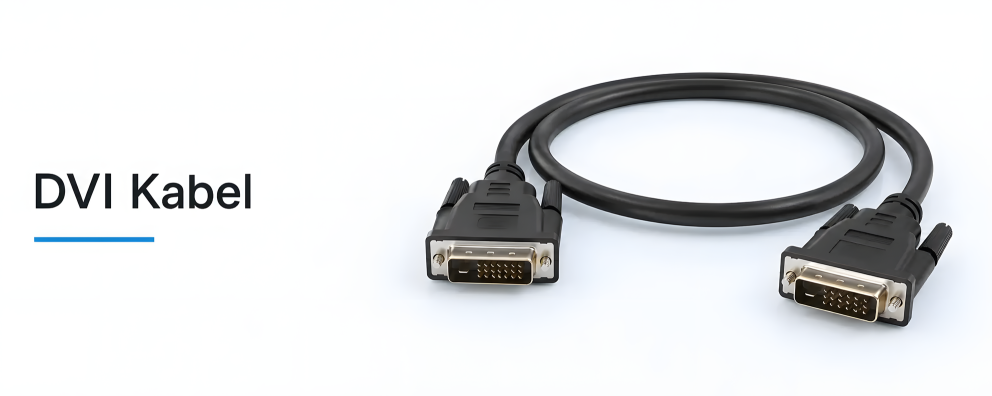
Connecting DVI monitors to PCs, workstations and HDMI devices

1 to 7 (from a total of 7)
Which DVI cable is suitable for your monitor?
Compare the video output of the source device with the input on the monitor. If both devices have a compatible digital DVI port, a DVI-D cable will provide a direct connection. For HDMI on one end and DVI on the other, choose a suitable HDMI/DVI cable.
| Cable type | Application | 2 m length |
|---|---|---|
| DVI-D Dual Link 24+1-pin / 24+1-pin |
Digital connection between a DVI source and a DVI monitor; for Dual Link, both devices must support this mode. | DVI-DD-2PB · Polybag DVI-DD-2KB · DINIC Box |
| HDMI to DVI-D HDMI Type A plug / DVI-D plug |
Digital image transmission between HDMI and DVI devices, such as an HDMI-equipped PC and a DVI monitor. | HDMI-DVI-2PB · Polybag HDMI-DVI-2KB · DINIC Box |
The table shows selected standard items. Certain other lengths and connector variants are marked as discontinued items. Please note the item status and the stock levels shown.
Three points to consider when choosing the right cable
1. Signal type and pin configuration
DVI-D transmits digital video signals. DVI-I also features analogue pins; a VGA connection requires an actual analogue signal to be present. You should therefore ensure that not only the connector type but also the signal path is compatible with the devices.
2. Resolution and link mode
For dual-link operation, the output, cable and monitor input must be suitably configured. Also check the desired resolution and refresh rate. An HDMI/DVI cable does not provide a dual-link connection simply because it has a 24+1 connector configuration.
3. Cable length and design
Measure the cable route, allowing extra length for the monitor arm and desk grommet. The linked 2-metre DVI-D cables are multi-shielded and feature gold-plated contacts. Choose the packaging to suit product display, storage or installation requirements.
Frequently asked questions about DVI cables
What is the difference between DVI Single Link and Dual Link?
Dual Link utilises additional digital transmission channels and, with compatible devices, allows for higher data rates than Single Link. This is relevant for certain higher resolutions or refresh rates. A Dual Link cable on its own does not extend the capabilities of a Single Link output or monitor.
Does an HDMI-to-DVI cable also work the other way round, from DVI to HDMI?
The passive HDMI/DVI cables shown here can transmit compatible digital video signals in both directions. They are therefore suitable for connecting an HDMI source to a DVI display, as well as a DVI source to an HDMI display. The source and display must support the same video mode.
Does a DVI cable also transmit audio?
For the DVI connections described here, separate audio transmission must be arranged. The HDMI/DVI cable is also intended for digital video transmission. If required, use a suitable audio output on the computer or media player.
Can I connect a VGA monitor using a DVI-D cable?
Not via a purely passive connection. VGA requires analogue signals, whilst DVI-D provides digital ones. A passive DVI/VGA connection requires a suitable analogue DVI output. You should therefore check the signal type for VGA cables and adaptors; active conversion is necessary for DVI-D to VGA.
Why does the monitor remain blank despite using the correct cable?
Check the selected monitor input, the activated graphics output and the display settings. Also check that the connectors are securely fitted and verify the supported resolution and refresh rate. If there are several adaptors in the signal path, each component should be checked individually for compatibility.
Further solutions for existing monitors
An existing cable can be supplemented with a DVI adapter provided the signal type is compatible. For PCs and docking stations with a DisplayPort output, you can find DisplayPort-to-DVI adapters. If both devices have HDMI ports, choose an HDMI cable.
DVI cables for specialist retailers, system integrators and commercial IT
MAG GmbH has specialised in cables and adapters since 1992. Through our DINIC brand, we support procurement for replacement parts, existing monitor installations and resale. Product codes, technical specifications and the stock levels shown on the product pages assist with planning.
Do you need several cables or assistance with an existing installation? Please provide us with the device models, connectors, desired resolution and refresh rate, cable length and quantity. This will enable us to assess your requirements precisely.