
 German / Deutsch
 English
 French / Français
 Spanish / Español
 Dutch / Nederlands
 Italian / Italiano
 Polish / Polski
 Norwegian / Norsk
 Danish / Dansk
 Finnish / Suomi
 Swedish / Svenska
 Czech / Česky
 Greek / Ελληνικά
 Slovak / Slovenčina
 Slovenian / Slovenščina
 Estonian / Eesti
 Latvian / Latviešu
 Lithuanian / Lietuvių
 Hungarian / Magyar
 Romanian / Română
 Bulgarian / Български
 Portuguese / Português
MAG B2B · Monitor cables & adaptors
Which monitor cable do I need?
HDMI, DisplayPort or USB-C: Find the right connection between your computer and monitor – for individual workstations and for equipping entire teams.
Compare connectors, signal direction and display requirements. You’ll also find suitable DINIC cables from the MAG range and a checklist for your B2B enquiry.
The short answer
If both the computer and monitor have HDMI, choose an HDMI cable. If both have DisplayPort, use a DisplayPort cable. If the connections differ, you’ll need a suitable adapter cable or converter. USB-C can transmit a monitor signal if the port and cable being used support video.
The key factor is always the entire connection: the output, cable or adapter, and, where applicable, the docking station and monitor input must all support the desired display mode.
01 · Identifying ports
Distinguishing between HDMI, DisplayPort and USB-C
Check the ports on both devices. The shape helps you identify them; the resolution and additional functions a port actually offers are listed in the device manual.
HDMI
Type A is commonly found on monitors, televisions and many laptops. This connection transmits both picture and sound.
DisplayPort
Commonly found on business PCs, graphics cards, docks and monitors. A bevelled corner identifies the standard connector.
USB-C
A small, oval connector that can be plugged in either way round. The shape alone does not indicate whether it supports video, high-speed data transfer or charging.
Sketches for guidance only; not to scale. Mini and Micro variants are not shown.
Still using DVI or VGA? For older devices, check the exact connector type and the necessary adapter. You’ll find suitable ranges under DVI cables, VGA cables and DisplayPort adaptors.
02 · The right connection
Which cable connects your computer to the monitor?
Refer to the table showing the connection from the computer’s video output to the monitor’s input. If you’re using a docking station, its output is the starting point for the monitor cable.
| Output on the PC / dock | Input on the monitor | Suitable connection | Check before purchasing |
|---|---|---|---|
| HDMI | HDMI | HDMI cable | Desired resolution and frame rate; connector type and length. |
| DisplayPort | DisplayPort | DisplayPort cable | Bandwidth and display mode of the devices; standard or mini DisplayPort. |
| DisplayPort | HDMI | DisplayPort-to-HDMI cable | Signal direction. Passive solutions require a suitable DP++ output. |
| HDMI | DisplayPort | Active HDMI-to-DisplayPort converter; enquire about this solution. | Explicit authorisation for HDMI → DP and the desired display mode; additional power supply may be required. |
| USB-C with video output | HDMI | USB-C to HDMI cable | DisplayPort Alt Mode on the USB-C device port. |
| USB-C with video output | DisplayPort | USB-C to DisplayPort cable | DisplayPort Alt Mode, as well as supported resolution and frame rate. |
| USB-C with video output | USB-C with video input | Video-capable USB-C cable | Compatible video input on the monitor; when charging via the monitor, the monitor’s Power Delivery capability is also utilised. |
| DisplayPort | DVI or VGA | Compatible DisplayPort adapter | DVI version or active conversion to VGA; resolution and signal direction. |
On small screens, the table can be scrolled horizontally.
A mechanically compatible connector is not sufficient. A cable does not compensate for a missing video output on a laptop, nor does it turn a monitor output into an input. With USB-C, check the device description carefully.
03 · Avoiding common mistakes
DisplayPort to HDMI is not the same as HDMI to DisplayPort
Many adapter cables only work in one direction. The crucial factor is which device is sending the image and which is receiving it. The order of the connectors in the product name does not replace checking the product description.
DisplayPort output → HDMI input
DisplayPort output → monitor
HDMI input
A suitable DisplayPort-to-HDMI cable can be used here. For passive cables, the output must support Dual-Mode DisplayPort – often referred to as DP++ – to match the required display mode.
HDMI output → DisplayPort input
HDMI output → monitor
DisplayPort input
For this connection, you will need a dedicated active converter. A standard DisplayPort-to-HDMI cable cannot simply be reversed for this purpose. Some converters require an additional power supply.
4K, 60 Hz and cable length: the entire connection matters
For 4K at 60 Hz, the computer, dock or adapter (if applicable), cable and monitor input must all support this mode. A single specification such as ‘4K’ is not sufficient for selection: 30 Hz and 60 Hz have different requirements.
For offices and IT roll-outs
First, define your target configuration: for example, one 4K monitor at 60 Hz per workstation. Then set out the devices, connectors, cable lengths and packaging as a fixed bill of materials. Test the combination on a sample workstation before rolling out larger quantities.
For long cable runs
Select the length with a margin for installation, but without unnecessary excess length. Check the performance specifications of the specific product. For longer distances, active or optical solutions may be advisable; in such cases, signal direction and, where applicable, power supply are particularly important.
04 · From the MAG range
Suitable DINIC monitor cables for typical workstations
These items serve as specific starting points for your selection. Before ordering, please check the connector combinations and the details on the relevant product page. You will also find the current terms and availability there.
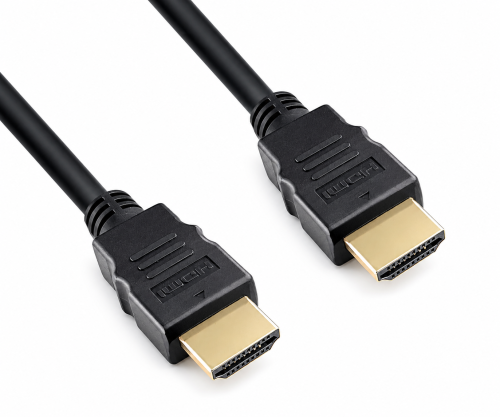
DINIC · HDMI-2
HDMI to HDMI
For devices with an HDMI output and an HDMI input.
2 m · black · polybag
Up to 4K at 60 Hz, provided both devices support the required picture mode.
HDMI to HDMI: View product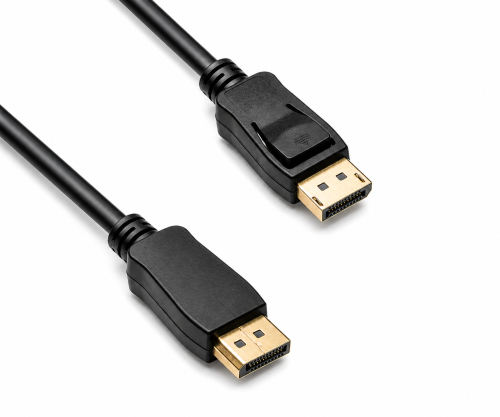
DINIC · DP14-2M-PB
DisplayPort to DisplayPort
For PCs, workstations or docks with DisplayPort.
2 m · black · polybag
DisplayPort 1.4, up to 32.4 Gbit/s. Check the achievable display mode based on the entire connection.
DisplayPort to DisplayPort: View product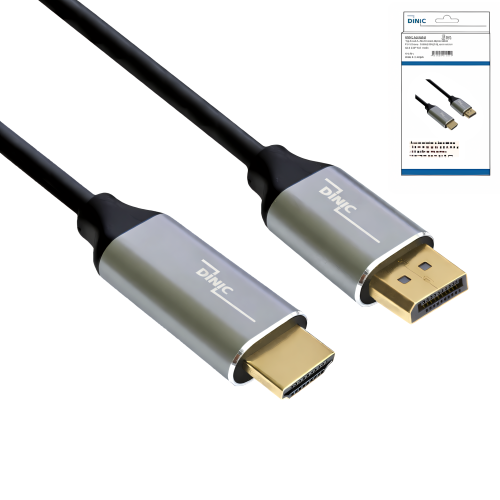
DINIC · DP-HDMI-4K-2KB
DisplayPort to HDMI
For a DisplayPort output and an HDMI monitor.
2 m · DINIC Box
Up to 4K at 60 Hz. Passive, directional connection; a suitable DP++ output is required.
DisplayPort to HDMI: View product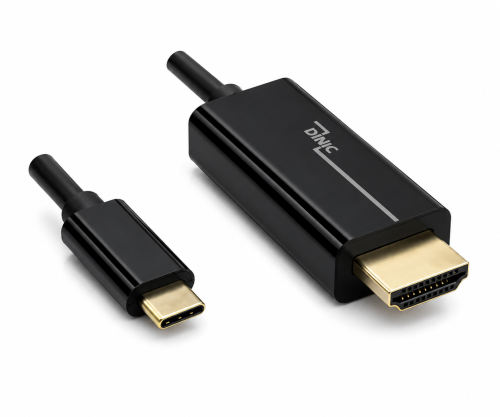
DINIC · USBC-HDMI-2-SPB
USB-C to HDMI
For USB-C devices with DisplayPort Alt Mode.
2 m · black · polybag
Up to 4K at 60 Hz on an HDMI monitor. The USB-C port on the computer must be capable of outputting video.
USB-C to HDMI: View product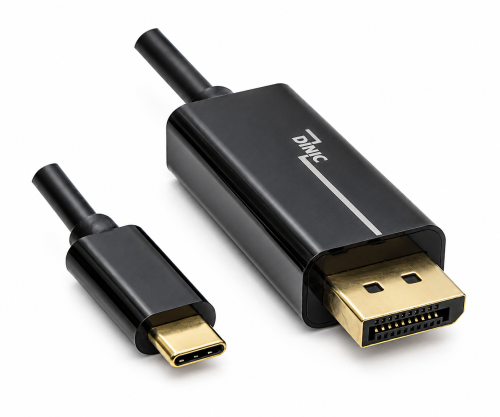
DINIC · USBC-DP-2-SPB
USB-C to DisplayPort
For a USB-C video output and a DisplayPort monitor.
2 m · black · polybag
Up to 4K at 60 Hz. DisplayPort Alt Mode required on the computer’s USB-C port.
USB-C to DisplayPort: View product
DINIC · USBC-4-1-HQKB
USB-C to USB-C
For compatible USB-C monitors and docking stations.
1 m · black/silver · DINIC Box
USB4 cable with up to 40 Gbit/s and up to 240 W Power Delivery. Video and charging performance also depend on the devices.
USB-C to USB-C: View productPerformance specifications apply when used with suitable devices and in a supported display mode. A cable on its own does not guarantee a specific resolution or charging power.
Connect a monitor via USB-C and charge your laptop
With a suitable USB-C connection, video, data and power can be transmitted via a single cable. For this to work, the laptop, monitor or docking station and cable must all support the required functions.
USB-C to HDMI or DisplayPort
The adapter cables shown transmit the video signal from the USB-C device to an HDMI or DisplayPort input. DisplayPort Alt Mode is required on the computer for this. These video-only cables do not charge the laptop via the monitor.
USB-C to USB-C
The monitor must have a USB-C input for video. If it is also to charge the laptop, it must provide sufficient USB Power Delivery. The cable’s wattage rating indicates its maximum load capacity; it does not specify how much power the monitor supplies.
You can find out more about data rates, charging power and cable types in our guide ‘Choosing the right USB-C cable’. For a comparison of the standards, see ‘Thunderbolt or USB4’.
05 · B2B procurement with a clear bill of materials
Selecting monitor cables for your next project
Are you kitting out offices, supporting customers as an IT service provider, or looking for suitable items for your product range? Send MAG the key details of your setup. This will help narrow down the product selection.
This information will help with the selection
- Manufacturer and model of laptop, PC, docking station and monitor
- Output and monitor input used, preferably with photos
- Number of monitors, desired resolution and refresh rate
- Cable length and quantity required per configuration
- Preferred packaging and planned date of use
From selection to procurement
Please use the item numbers on this page for your enquiry. If the configuration has not yet been finalised, device descriptions and connection photos will help with allocation.
For further processing or resale, please also take the packaging types into account. For specific requirements, you will find information on bespoke products.
06 · Frequently asked questions
Questions about monitor cables and adaptors
Which is better for a monitor: HDMI or DisplayPort?
That depends on the ports and supported display modes of your devices. Both interfaces may be suitable for office workstations. Where possible, opt for a direct connection without unnecessary adaptors and check the required resolution and refresh rate. The name of the port alone does not allow for a general assessment of quality.
Which monitor cable do I need for 4K at 60 Hz?
You need a connection that explicitly supports 3840 × 2160 pixels at 60 Hz. Suitable options include HDMI, DisplayPort or USB-C solutions. The output, cable, any adaptors or docks, and the monitor’s input must all be compatible. Also check for additional requirements such as HDR and higher colour depth.
Can I use DisplayPort to HDMI in both directions?
With most of these adapter cables, this isn’t possible. A cable designed for a DisplayPort output to an HDMI input won’t automatically work from an HDMI output to a DisplayPort monitor. For HDMI to DisplayPort, you’ll need an active converter specifically designed for this purpose.
Does every USB-C port work with a monitor?
No. USB-C primarily refers to the connector type. For the USB-C-to-HDMI and USB-C-to-DisplayPort cables shown here, the computer must support DisplayPort Alt Mode. Check the technical specifications of the device and the specific port being used. A charging port or a USB-C data port on its own is not sufficient.
Can I use any USB-C charging cable as a monitor cable?
No. A cable may be designed for charging without supporting video. Choose a cable that is explicitly rated for video and check the required data or video performance. Even a high wattage rating is no guarantee of video transmission.
Can a USB-C monitor charge my laptop at the same time?
Yes, provided that the monitor’s USB-C port supports Power Delivery with sufficient power output, the laptop can be charged via this port, and the cable is suitable. Check all three components. A USB-C-to-HDMI cable without an additional charging port does not offer this function.
How do I connect two monitors to a laptop?
First, check how many external displays your laptop, graphics system, operating system and, if applicable, docking station support. Options include separate video outputs or a suitable multi-monitor docking station. For DisplayPort chaining, the devices involved must support MST. A simple HDMI splitter usually delivers the same image to multiple displays and does not replace an extended workspace.
Why does the monitor remain black despite using the correct cable?
Check the selected monitor input, the connectors and a picture mode supported by both devices. Then check the signal direction of any adaptor. With USB-C, a common cause is the port not providing a video output. If possible, first test a direct connection without a dock or intermediate adaptor.
Is an adapter or a through-type adapter cable more suitable?
An integrated adapter cable connects different ports without any additional connectors in between. A separate adapter may be preferable if you wish to continue using an existing cable. In both cases, the signal direction, connectors and display mode must be compatible; additional connection points can make troubleshooting more difficult.
What information does MAG require for a B2B enquiry?
It is helpful to provide the device names, output and input, resolution and frame rate, as well as cable length, quantity, packaging and intended date of use. If possible, please provide a part number or send photos of the connectors. The MAG contact page lists the relevant points of contact.